
Set up storage
Ceph is not part of the install: you start it once every node has joined. The
installer only reserved the disks. Do these in order. Console: Admin ›
Substrate › Ceph, with the Set up Ceph button. Each call below has a form there; the API calls assume
$API and $TOKEN.
Before you set up Ceph
Section titled “Before you set up Ceph”- Every node is a joined, active member.
- Every node’s storage path carries its MTU. A path that does not is refused
(
StoragePathMTU): fix it first. - Every node has enough free memory. Setting up Ceph checks each host, keeps 2 GiB of it for the monitor and manager, and needs at least about 1.4 GiB more for each OSD. It refuses, naming the node, and starts nothing when one is short.
Set up Ceph
Section titled “Set up Ceph”curl -X POST "$API/v1/admin/storage/ceph/bootstrap" \ -H "Authorization: Bearer $TOKEN" -H 'Content-Type: application/json' -d '{}'{} takes the defaults: three monitors, two managers, and an OSD on every disk
reserved for Ceph, wiped as it is used. In the console the form pre-selects
those disks.
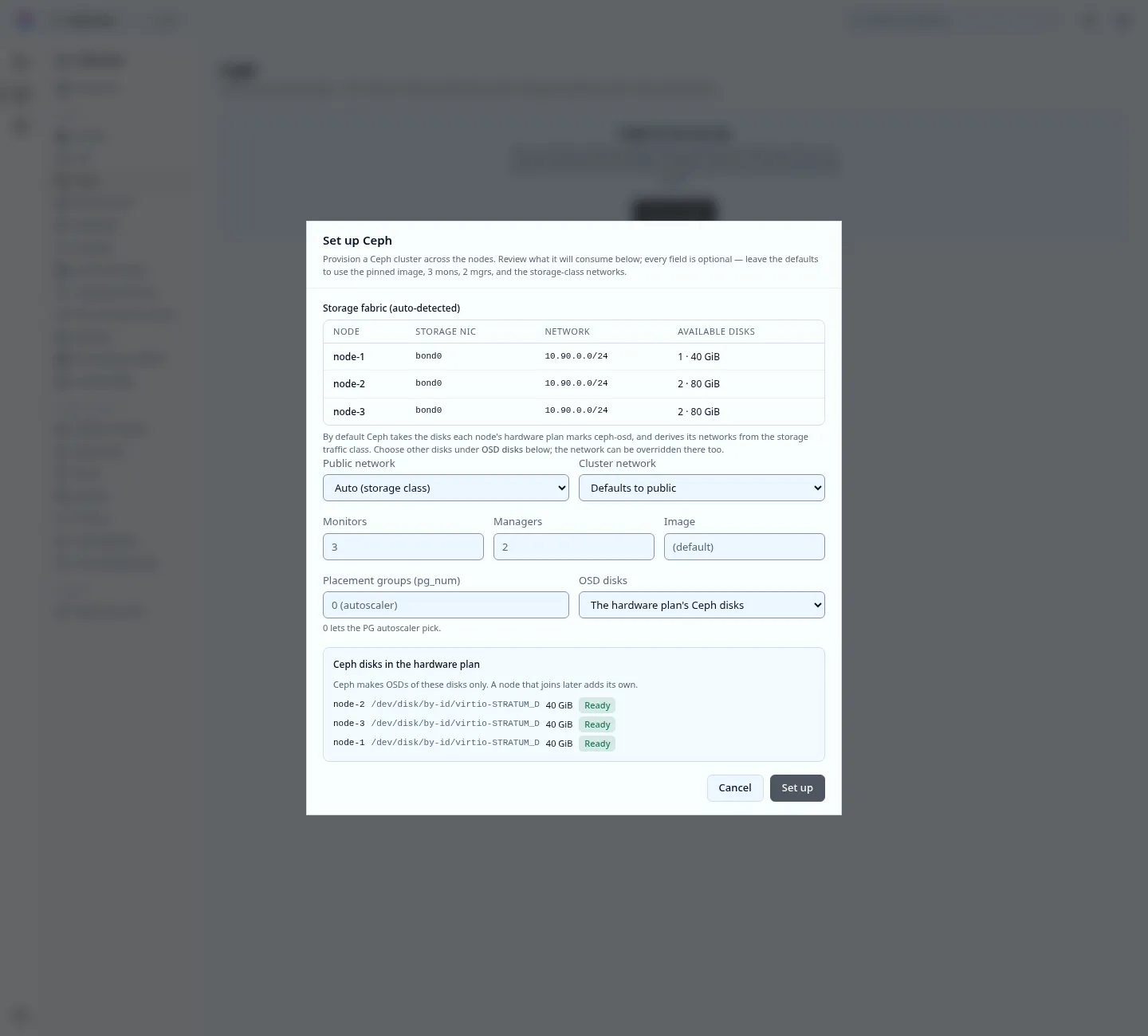
The request returns at once and a reconciler does the work, on one node. Follow it:
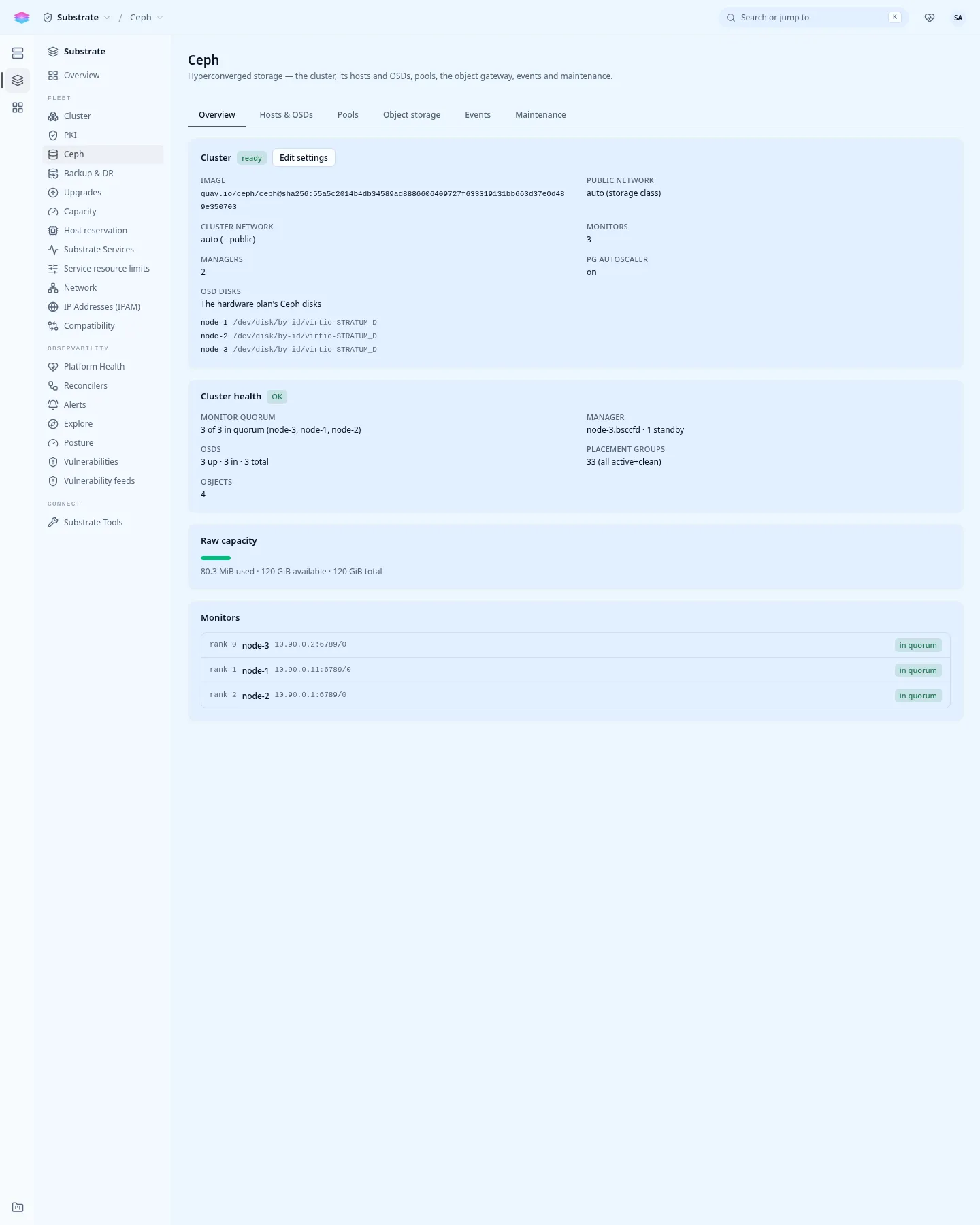
curl -s "$API/v1/admin/storage/ceph/cluster" -H "Authorization: Bearer $TOKEN" \ | jq '{exists, bootstrapNode, rgwDeployed, phase: .status.phase, health: .status.health}'The phase goes unconfigured, bootstrapping, ready. When it is ready:
- One OSD per reserved disk. With one reserved disk per node, one OSD per node.
- The pool
volumesexists: three copies of each object, at least two to accept writes, and each copy on a different node. - The cephx user
client.volumesis what instances use to reach it.
To name the disks yourself, send osdPaths:
{"osdPaths": [{"host": "node-1", "devices": ["/dev/disk/by-id/nvme-EXAMPLE_B"]}]}.
A disk the node’s plan gives another role is refused.
A set-up that failed is rolled back and not run again by itself. Readiness
shows CephBootstrapFailed with the reason. Fix the cause, then ask again: the
same POST, or PATCH /v1/admin/storage/ceph/cluster with {}.
Deploy the object gateway
Section titled “Deploy the object gateway”The object gateway (RGW) serves S3. Managed databases need it. Console: the Object storage tab of the Ceph page, Deploy object gateway.
curl -X POST "$API/v1/admin/storage/ceph/rgw" \ -H "Authorization: Bearer $TOKEN" -H 'Content-Type: application/json' -d '{}'curl -s "$API/v1/admin/storage/ceph/rgw" -H "Authorization: Bearer $TOKEN"It is refused with 409 until Ceph exists. The default is one gateway per monitor, on port 7480. It is deployed once the second call lists a running daemon. The object storage and managed database services stay off until then; see the cluster at a glance.
Create a storage class
Section titled “Create a storage class”A node with a compute pool has that pool’s class. A node whose OS disks are whole
and that reserved only Ceph disks has none, and instances cannot launch
(409 NO_STORAGE_CLASS). Either way, create the class for Ceph:
stratumctl storage-classes create replicated --driver ceph-rbd --pool volumes --defaultstratumctl storage-classes listVolumes of this class survive losing a node, and instances on it can restart on another node. See Storage.
Import an image
Section titled “Import an image”The install registers no images. Add one now: it goes into the default storage
class unless you name one with --storage-class.
With internet access, from the base-image catalog:
stratumctl admin images catalog add almalinux-10-genericcloudstratumctl admin images catalog # follow itWithout, upload a file from your machine. Give it the OS labels (10 or a point
release such as 10.2 both count), since the operator images find their base by
them:
stratumctl images upload --file ./AlmaLinux-10-GenericCloud-latest.x86_64.qcow2 --name almalinux-10 \ --os-family linux --os-distro almalinux --os-version 10 --sha256 <sha256 of the file>See Images.
Next: build the operator images.